
Introduction
The Custom IP Core Factory is an online tool for instantly defining, generating and downloading custom configurations of IP cores. A virtually arbitrary number of streams can be defined, having attributes best meeting the needs of a specific application.
Once downloaded, the files in the custom IP core bundle partially replace those in the demo bundle (or the example design) for the specific device family. It is therefore recommended to first walk through the demo bundle's implementation flow, and only then apply the custom core. Note that there's no demo bundle for Xillyp2p, but rather an example design.
It is also highly recommended to properly understand how the demo bundle or example design works before attempting to integrate a custom IP core. A lot of common mistakes are avoided just by briefly studying the sample Verilog / VHDL code of the "xillydemo" module or the code published in the example design.
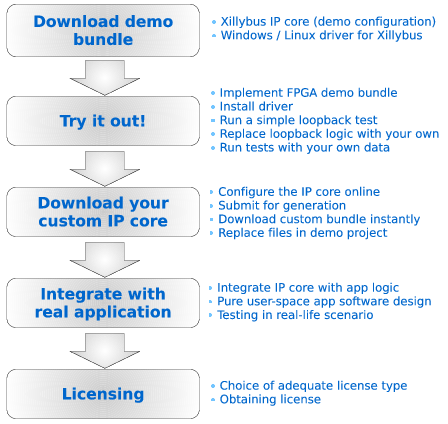
The recommended order of actions is depicted to the right.
IP Core Factory Work flow
It's recommended to sign up by supplying a valid email address (possibly a Gmail or similar service). This ensures that the configurations are saved, and is also mandatory for generating and downloading custom IP cores.
- When first entering the Factory, enter the basic definitions of the desired IP core (e.g. setting the target device family, operating system(s) and choose whether to start off with the demo device files or not).
- For Xillybus and XillyUSB: Add new device files as required, or remove existing ones. For each new device file, set up the direction, type of use in the application, data width, and expected bandwidth. It's recommended to have the "Autoset internals" option set, at least at the first stage. Also, please set the parameters accurately (as opposed to trying to maximize performance by e.g. exaggerating bandwidth expectations) or a suboptimal overall performance may result.
- For Xillyp2p: Set up the required application data streams between the FPGAs: direction, data width, expected bandwidth, and whether flow control should be applied.
- When done setting up the IP core, submit its configuration by clicking on the "generate core" link on the page outlining the configuration.
- Wait until the IP core is generated. This typically takes a few minutes. The IP core's "status" attribute should be monitored.
- Download the custom IP core and follow the instructions in the "readme" file.
- If changes are desired in the configuration after submission, make a copy using the "replicate" link. The changes are made on the copy, which is then submitted for obtaining the updated version.
Go for it
Click here to enter the IP Core Factory.